
How to Make a Request or Report an Issue on Seerr
This guide helps you learn step by step how to make a request on Seerr via seerr.adelin.org, and how to report an issue related to a movie or TV show on Emby.
1. Access the Seerr Platform
- Open your browser and go to https://seerr.adelin.org
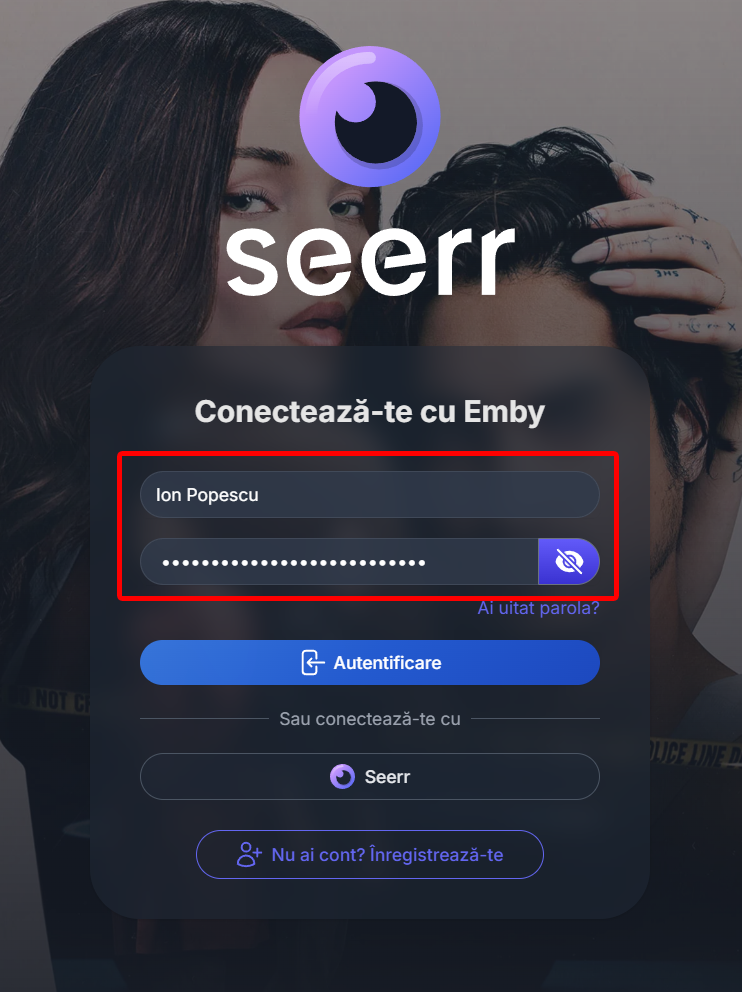
- Log in with your account
2. Search for and Select the Desired Movie or TV Show
- On desktop: use the left-hand menu (Navbar) to choose Movies or TV Shows
- On phone: scroll all the way down, where you can select whether you want movies or TV shows
- Find the movie or TV show you want (that isn't already on Emby)
- Go to its page by clicking on the poster
3. Submit the Request
- You will see a blue button with the text Request (on desktop it's on the left side, on phone it appears in the middle of the screen)
- Press the button to submit your request

4. If It's a TV Show or a Movie
If it's a TV Show: You will be asked to choose the season or seasons you want added to Emby Select the desired seasons and press Request or Select Season

If it's a Movie: You will see a very similar window, but here you just need to confirm by pressing the Submit Request button After confirmation, the movie will appear in your list of submitted requests
5. Request Confirmation

- Your request has been successfully submitted and everything went well
- After submission, the request will be marked as Pending
- The administrator will review and approve it within a maximum of 24 hours (usually much faster)

6. Content Appears on Emby
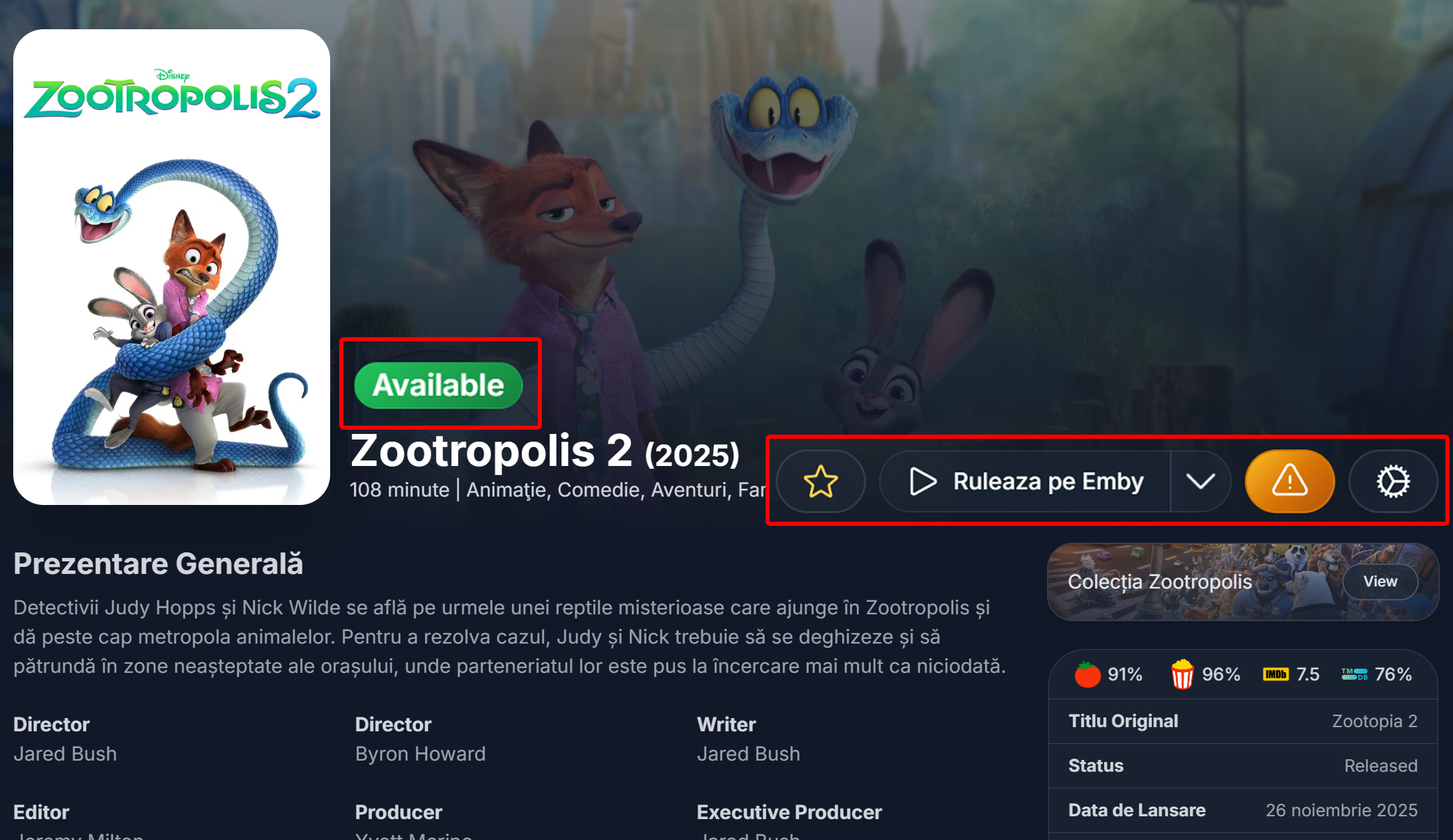
- After the administrator approves the request and the content is added to the server, it will appear as available on the site
- You can now press Play on Emby and watch the movie or TV show directly in the Emby application
7. Email Notification
- After the administrator approves the request and the movie/TV show appears on Emby, you will receive a confirmation email
- You'll know exactly when the content has become available
