How to Subscribe to Emby
This guide helps you subscribe to the Emby service step by step, if you are a new user and have never had an account before.
Step 1: Accessing the subscription page
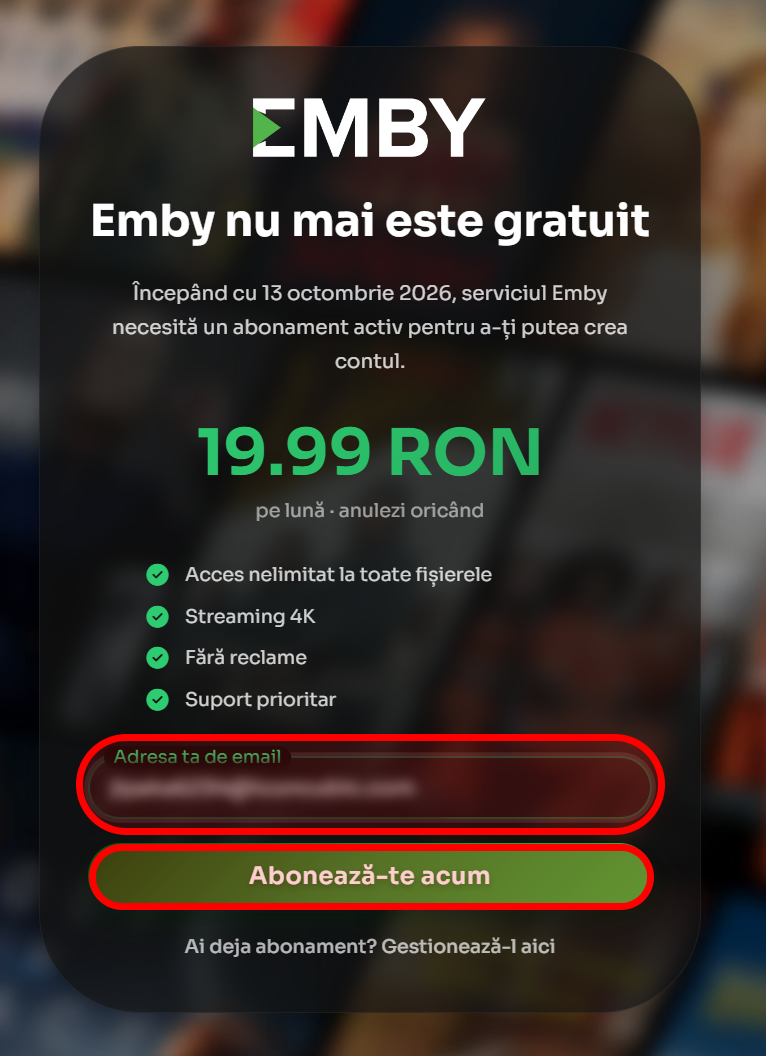
Go to the website https://signup.adelin.org. Here you will see the main page with information about the subscription.
You will see:
- The price of 19.99 RON per month
- The benefits of the subscription
- A field for the email address
- The "Subscribe now" button
Step 2: Entering the email address
Write your email address in the dedicated field. Make sure it is a valid address, because you will receive the link for creating the account at this email.
After you have entered the email, press the "Subscribe now" button.
Step 3: Detecting an existing account
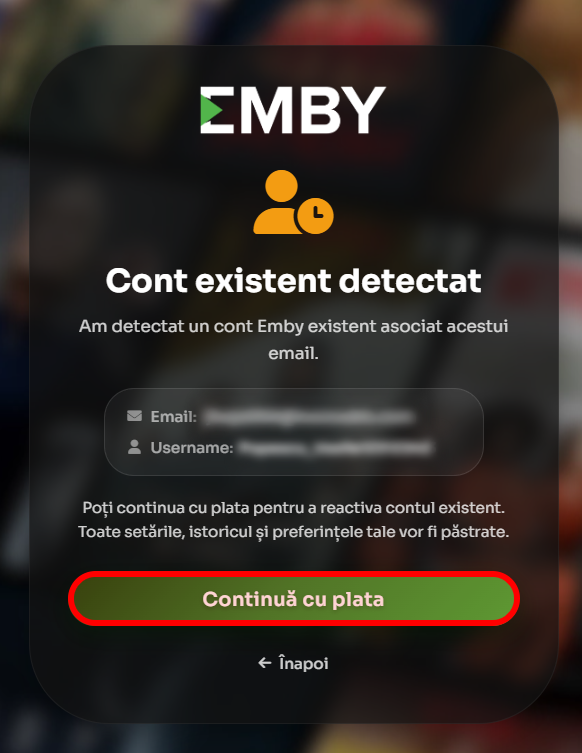
If the system detects that there is already an Emby account associated with this email, you will be redirected to a special form.
If you are a completely new user, you will be redirected directly to the Stripe payment page.
Step 4: The form for an existing account
If the system has detected an existing account, you will see a form with your account information.
The form displays:
- The email address associated with the account
- The username of the Emby account
You will see two buttons:
- "Continue with payment" to reactivate the account
- "Back" to return to the main page
Step 5: Adding the bank card
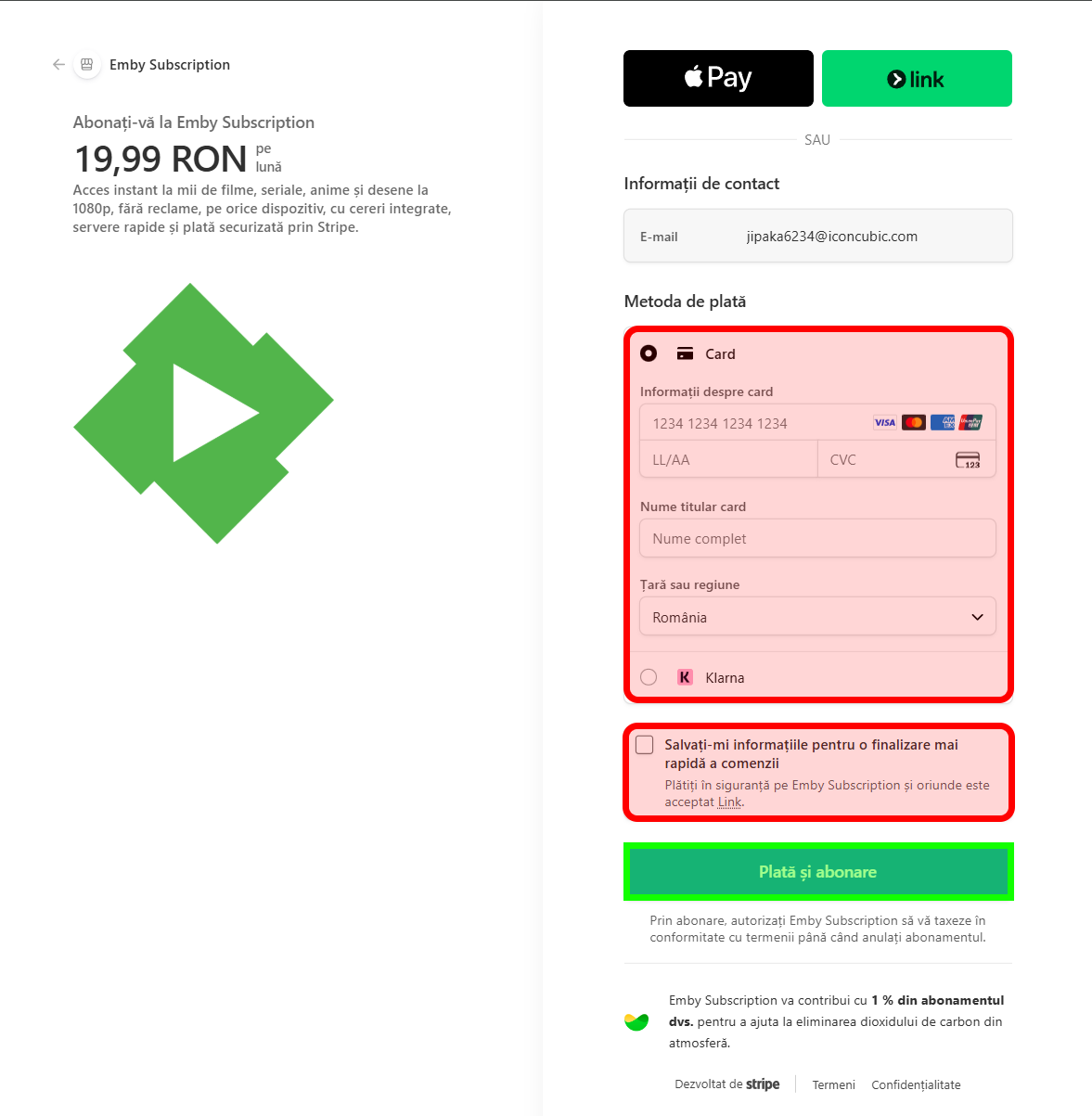
After you press "Subscribe now" or "Continue with payment", you will be redirected to the secure Stripe page.
Here you must enter:
- The bank card details (card number, expiration date, CVV code)
- The cardholder's name
- The billing address
All data is encrypted and processed securely by Stripe.
Step 6: Confirming the payment
After you have filled in all the necessary data, press the "Pay and subscribe" button to finalize the transaction.
If the payment is successful, you will be redirected to the success page.
Step 7: Payment confirmation and email verification
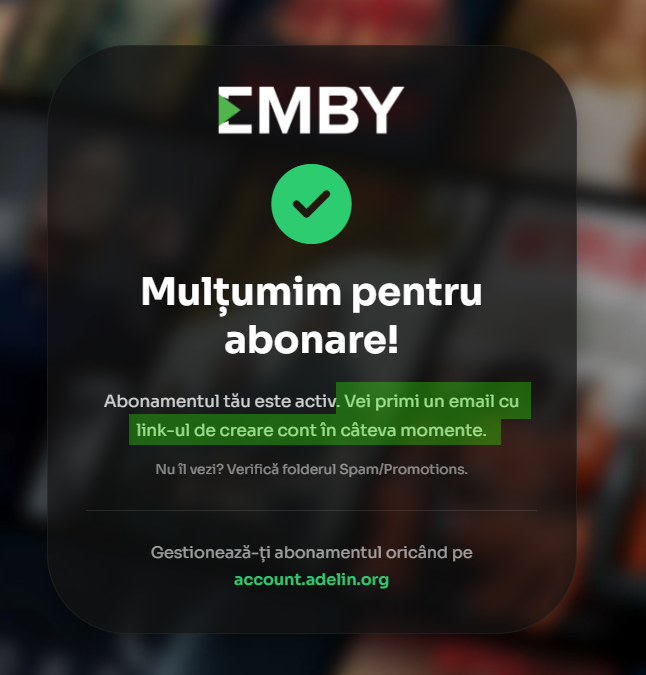
After you have filled in all the necessary data and pressed the "Pay and subscribe" button, the browser will automatically redirect you to a success page.
On this page you will see:
- The message "Thank you for subscribing!"
- Confirmation that your subscription is active
- The message "You will receive an email with the account creation link in a few moments"
- Warning: "Don't see it? Check the Spam/Promotions folder"
- Link to httpsaccount.adelin.org for managing the subscription
Step 8: Opening the email
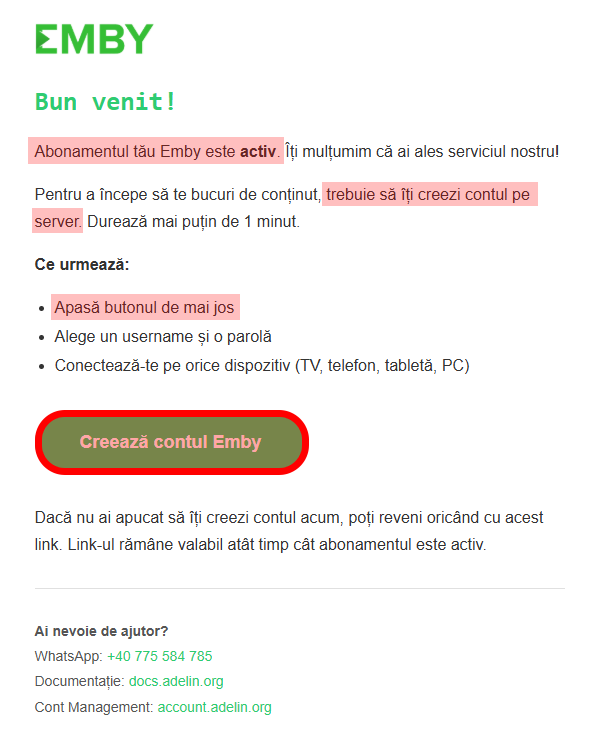
At the same time, you will receive a confirmation email at the provided address.
The email contains:
- Confirmation that the subscription is active
- A link for creating the Emby account
- Step-by-step instructions
Open the received email and click on the "Create Emby account" button.
The link in the email is valid as long as the subscription is active.
Step 9: Creating the Emby account
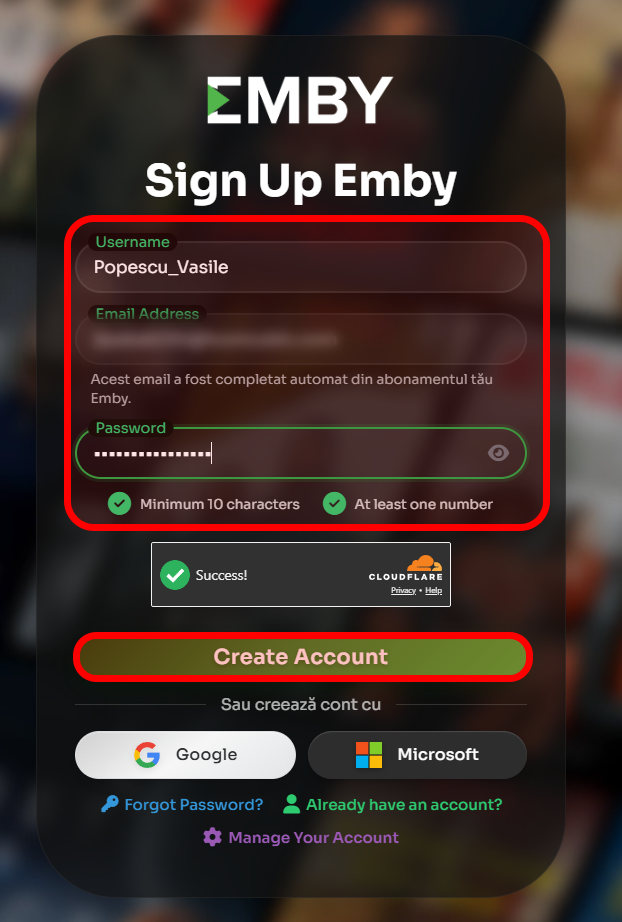
You will be redirected to the account creation page. Here you must fill in:
- The desired username
- The email address (automatically filled in, cannot be modified)
- The password (minimum 10 characters, at least one number)
Also, you can authenticate with your Google or Microsoft account, but with a preliminary condition: you must use exactly the same email address with which you made the subscription.
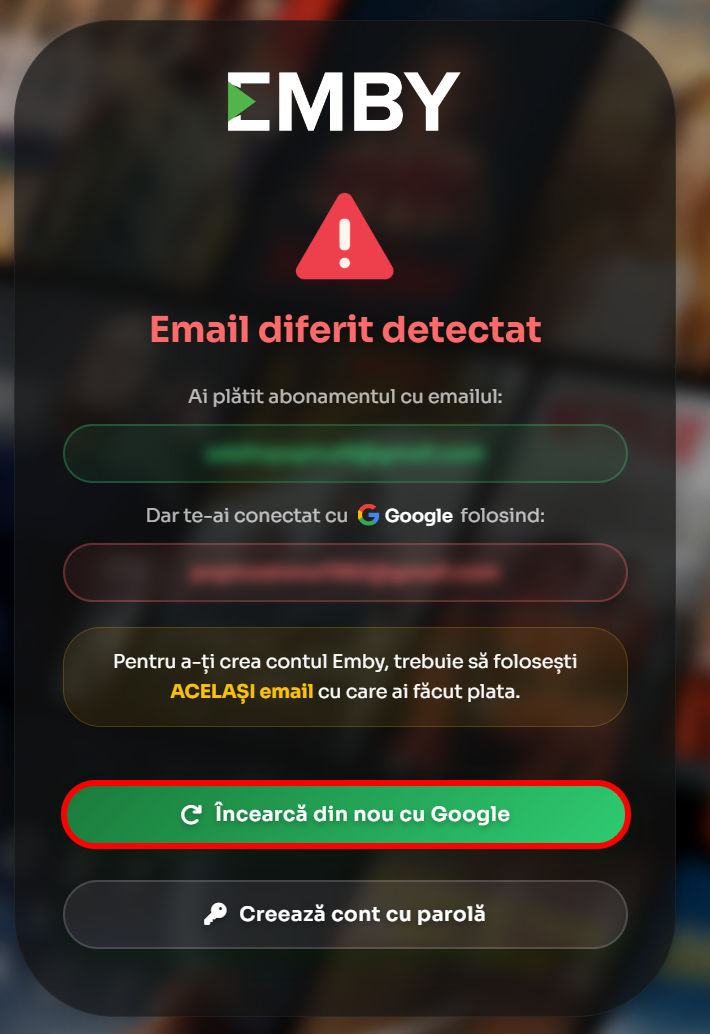
In this case, you can press the "Try again with Google" button to choose another account, or you can press the "Create account with password" button to create your account manually, using the correct email address.
After you have filled in all the fields, press the "Create account" button.
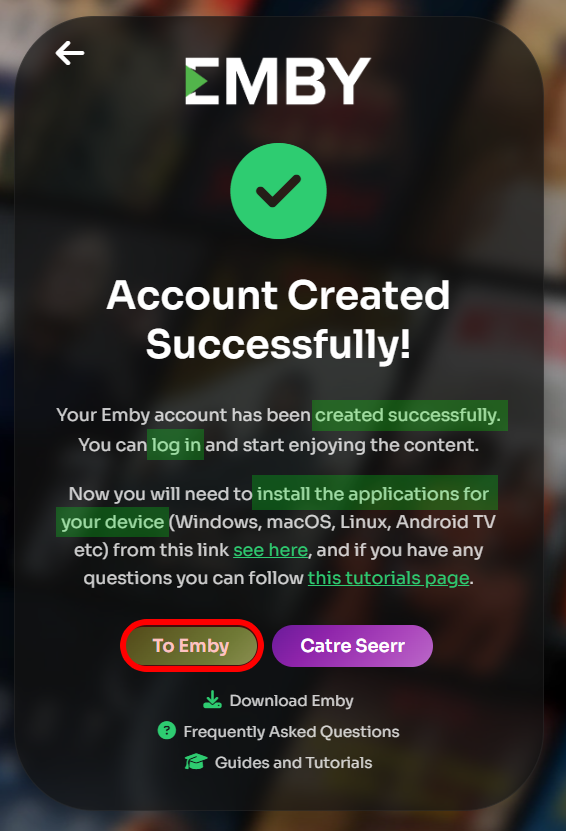
Step 10: Confirming the account creation
If everything went well, you will see a success message.
Your Emby account has been created successfully. Now you can log in and start enjoying the content. Also, you can download the Emby application for your device (Windows, macOS, Linux, Android TV, etc.) by pressing the "Download Emby" link.
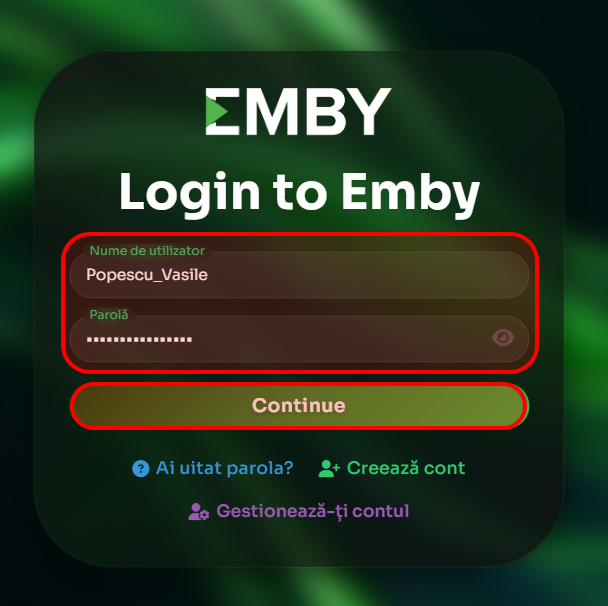
Step 11: Logging in to Emby
Access https://emby.adelin.org in your browser and log in using:
- The chosen username
- The set password
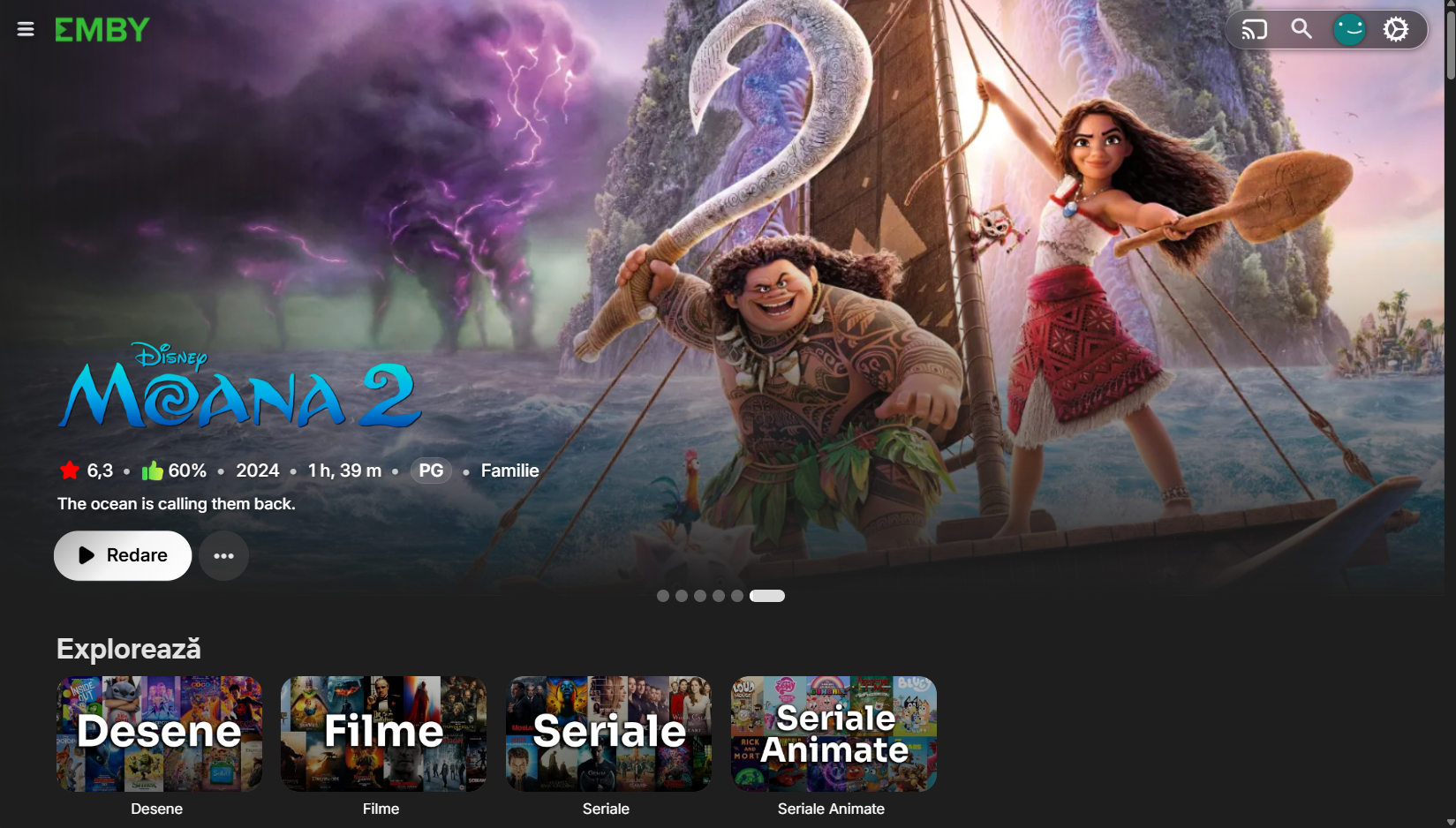
Step 12: Exploring the platform
Congratulations! You now have access to the Emby platform. Here you can explore a variety of content, including:
- Cartoons
- Movies
- TV Series
- Animated Series
Also, you can connect on your phone or computer, using the Emby application, to enjoy the platform to the fullest.
Frequently asked questions
What happens if I already have an active subscription?
If you try to subscribe again with an email that already has an active subscription, you will be automatically redirected to the Emby platform.
Can I change the email associated with the account?
Yes, you can change the email from the account management page, by accessing https://account.adelin.org.
What happens if the payment fails?
If the payment fails, you will receive a notification email. You can update the payment method from the Stripe portal to try again. In order to reach the Stripe portal and have access to it, you will need to go to this link https://account.adelin.org/#manage-portal and add your email for verification.
How can I cancel the subscription?
You can cancel the subscription at any time from the management portal, by accessing https://account.adelin.org/#manage-portal.
What happens to my account after cancellation?
The Emby account will be deactivated, but your data is kept. You can reactivate the account at any time through a new subscription.
Support
If you encounter problems or have questions, you can contact me:
- WhatsApp: +40 775 584 785
- Documentation: docs.adelin.org
- Account management: account.adelin.org