How to Connect Emby to Zuno (iOS Client)
This documentation guides you step by step through connecting your Emby server to the Zuno app on your iPhone or iPad.
Zuno is a modern and fast media player for iOS, designed for seamless integration with Emby servers, offering a clean interface and an excellent playback experience.
1. Installing the Zuno App
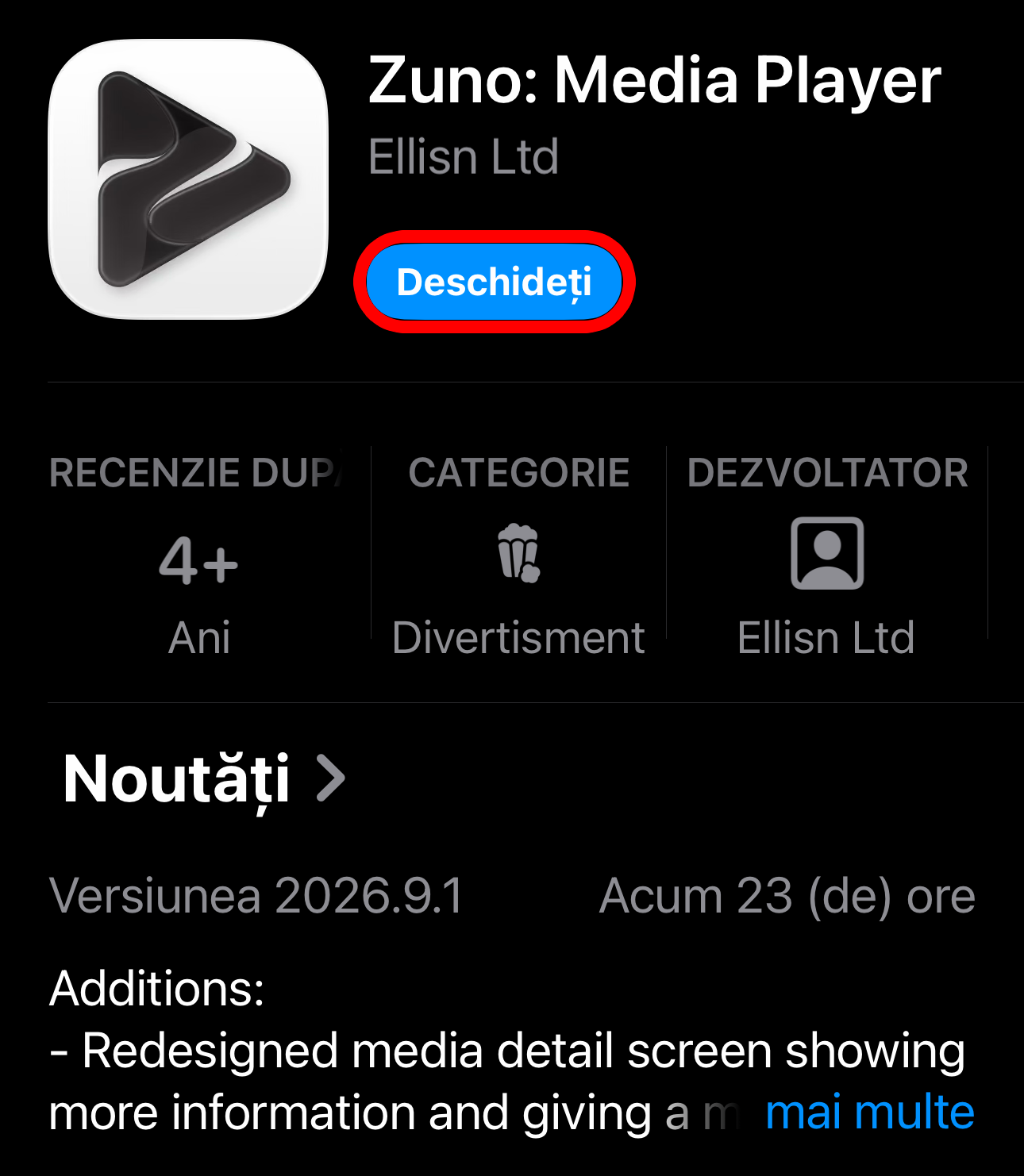
The first step is to install the Zuno app on your iOS device directly from the App Store:
Download and open the app from the App Store
Go to the App Store, search for the Zuno app and install it on your phone. After the installation is complete, tap the Open button.
2. Selecting the server type (Jellyfin / Emby)
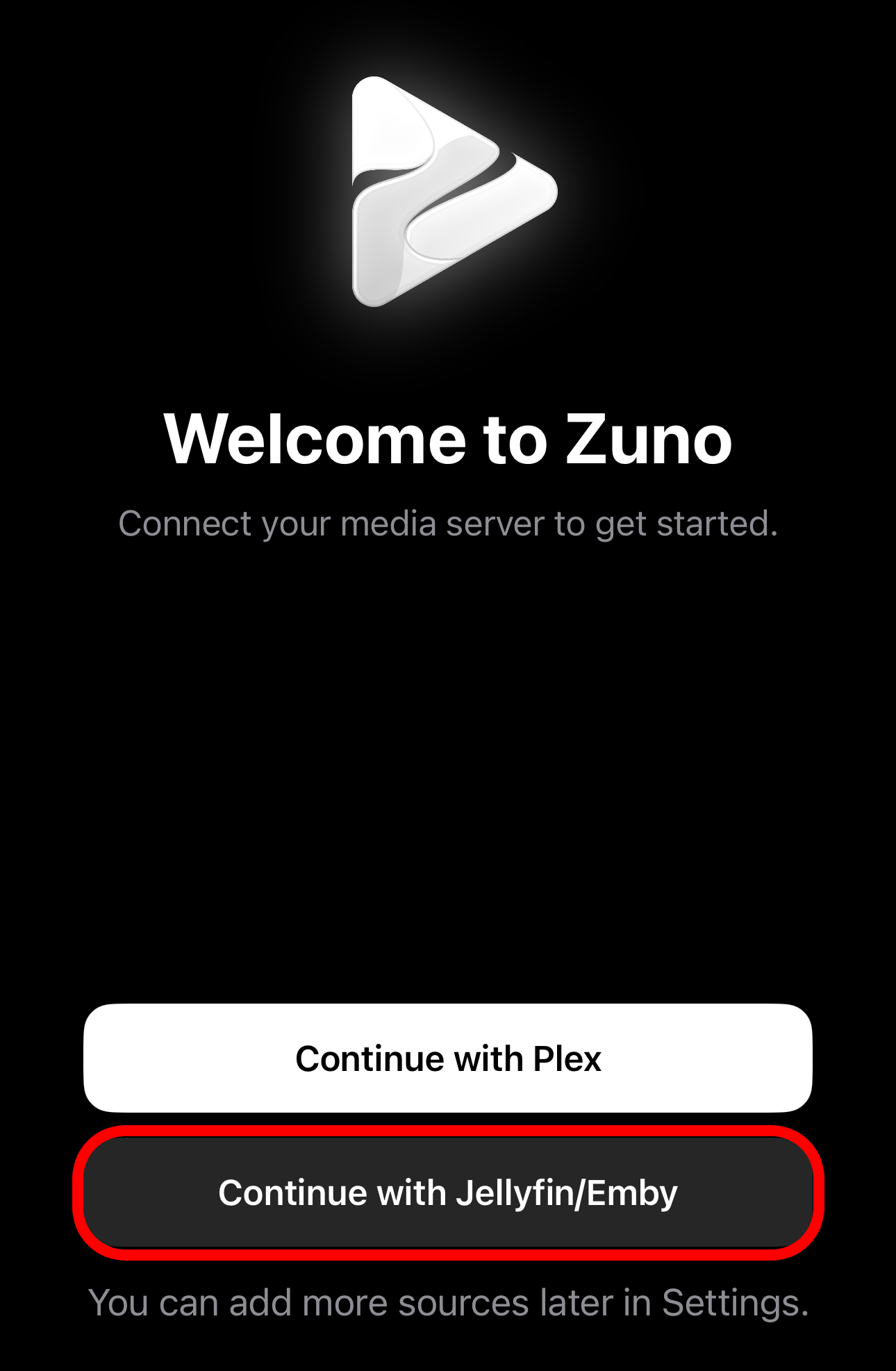
When you open the Zuno app for the first time, you will see the Welcome to Zuno welcome screen.
From the options displayed at the bottom of the screen, tap the second button, circled in red: Continue with Jellyfin/Emby.
3. Adding the server address
In the next step, in the Server URL field, you need to enter your Emby server address.
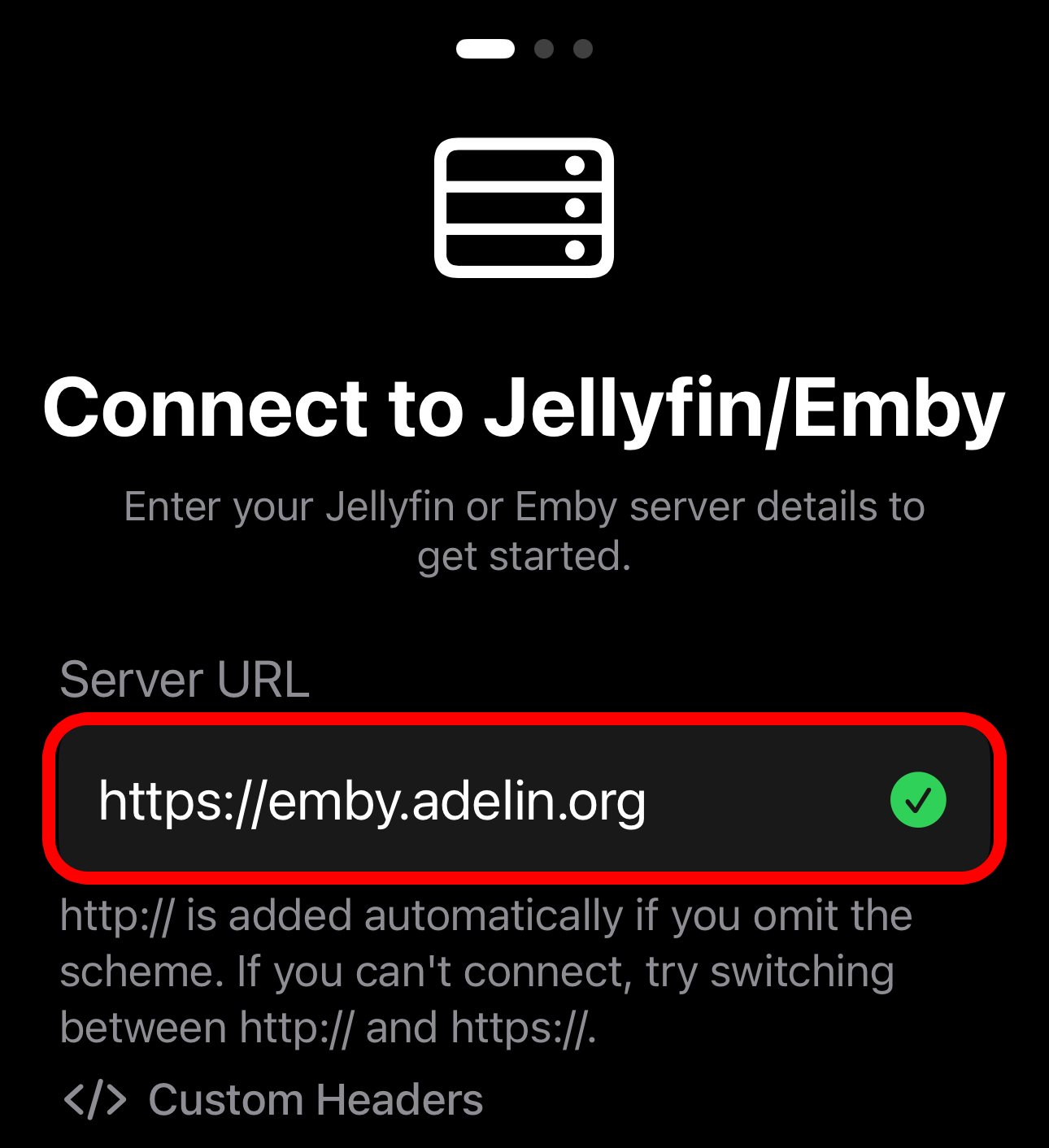
Enter one of the secure addresses below:
- Main Server:
https://emby.adelin.org - Alternative Server:
https://adelinx.go.ro:8920
After entering the address, tap the Connect or Next button.
4. Logging into your account
Now enter your Emby account credentials:
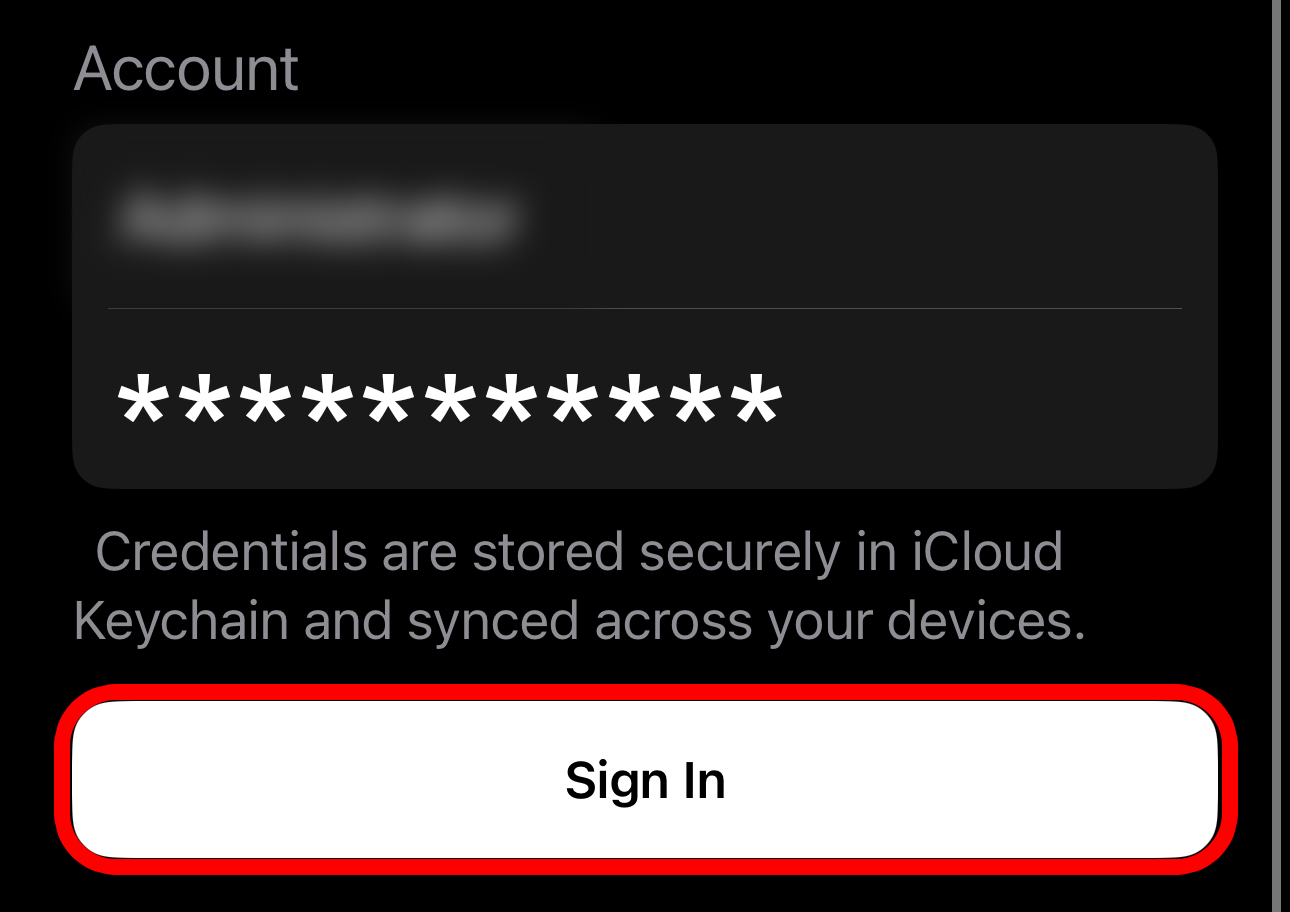
- Username / Email: Enter your Emby account username or email address.
- Password: Enter your account password.
After completing the fields, tap the Sign In button.
5. Continuing with the Basic version
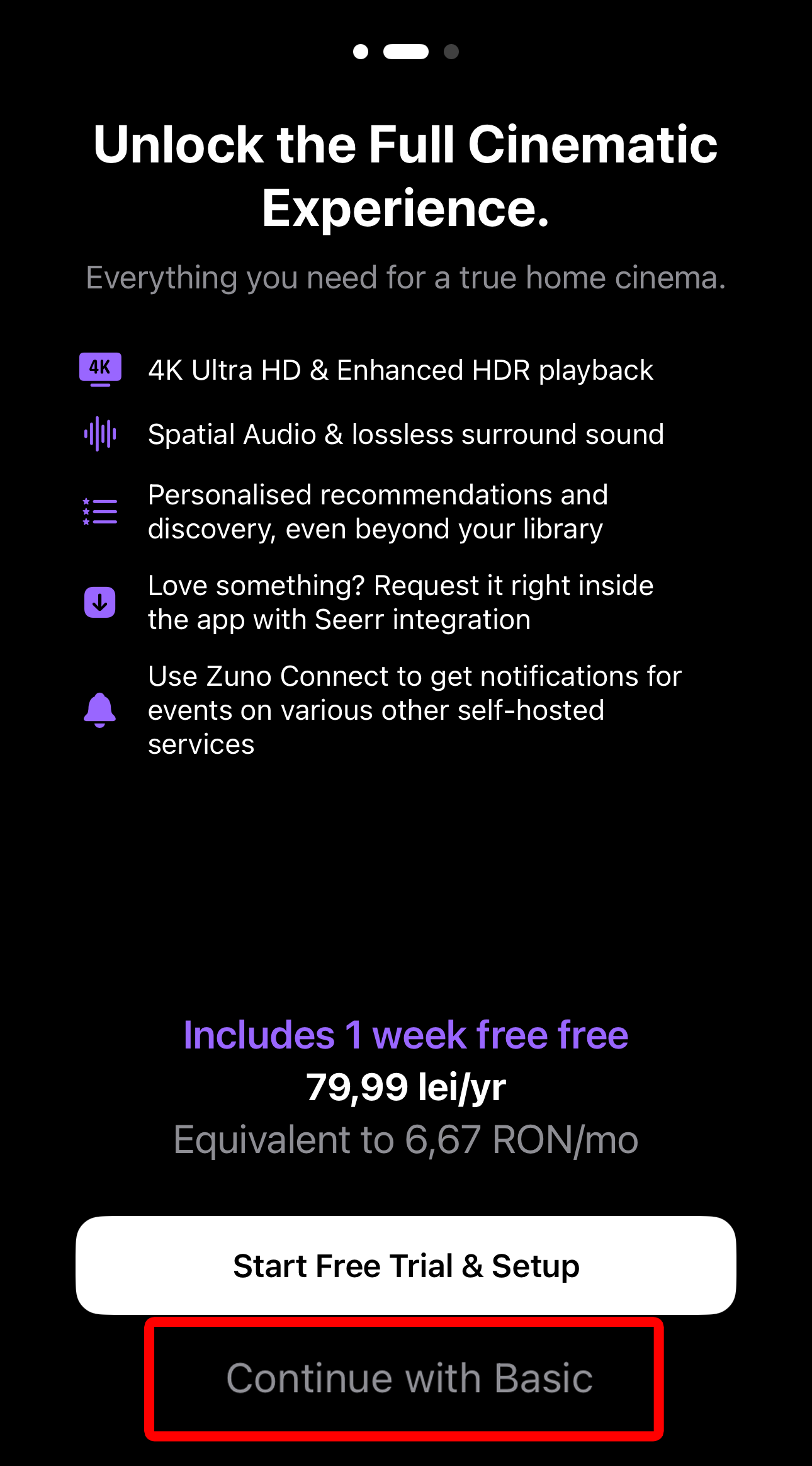
After authentication, the app will display the options screen. Tap the Continue Basic button to continue for free without additional options.
6. Configuration complete
Done! You have successfully connected to your Emby server using the Zuno app.
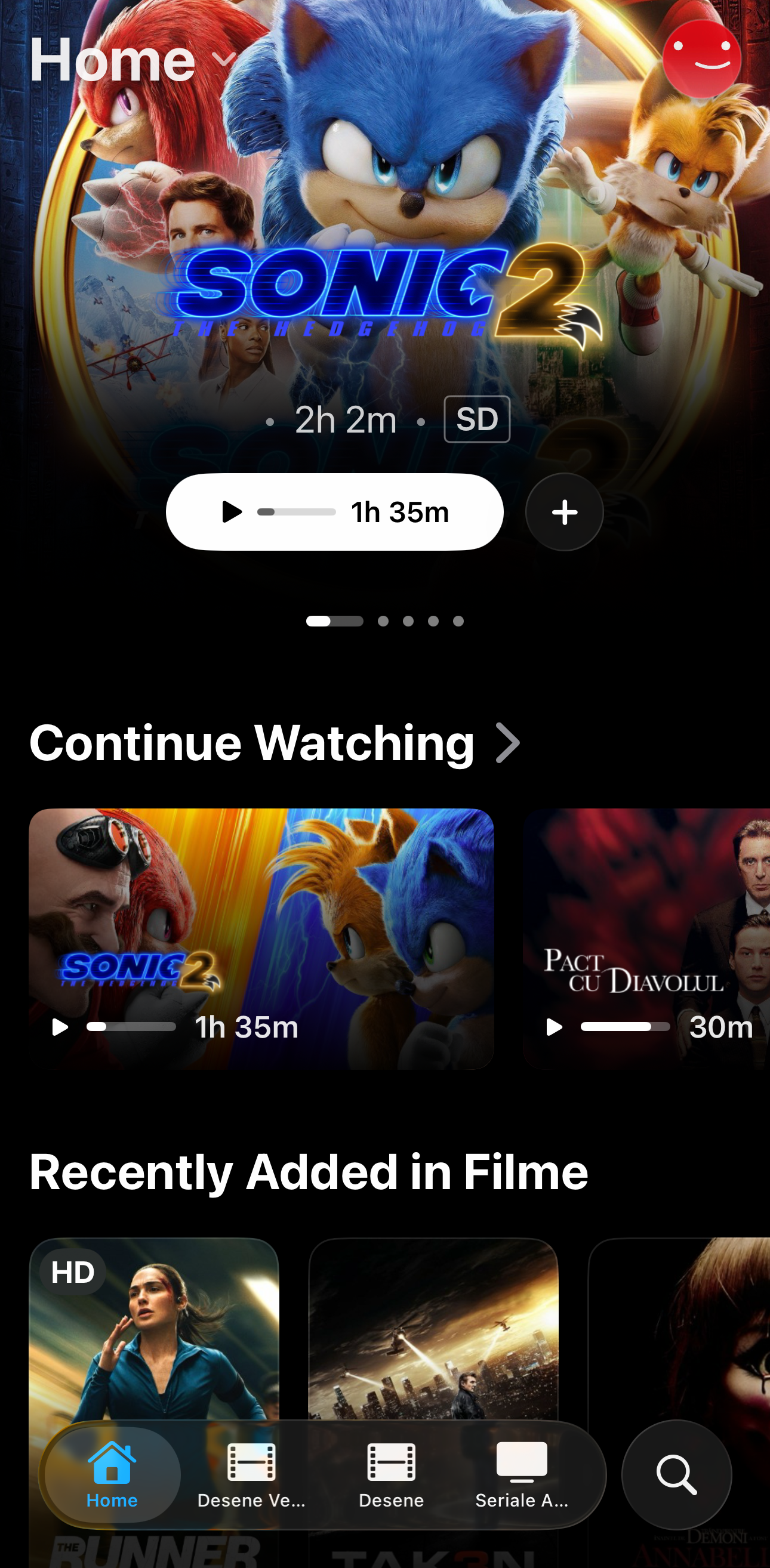
You now have access to your entire media library, movies and TV series directly from your iOS device.